Quick Tip
If messages appear to be missing after your mailbox migration, the email is usually still there.
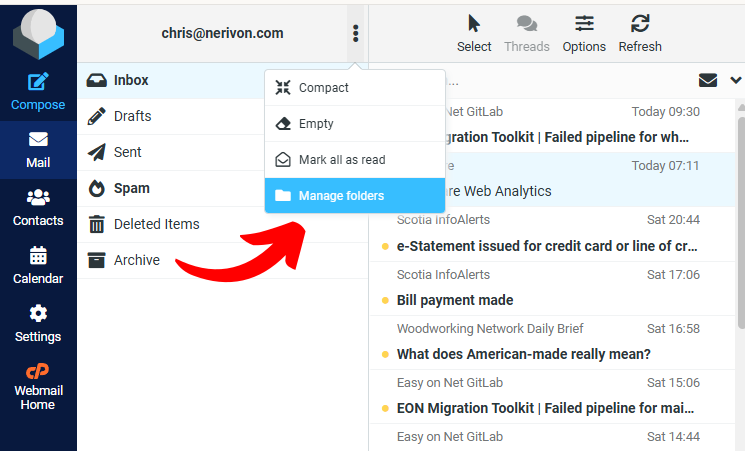
In our version of Roundcube, you can click the three vertical dots beside your email address, choose Manage folders, and turn the missing folders on.
- Sent
- Drafts
- Junk
- Deleted Items
- Archive
- Mail subfolders
After your mailbox has been migrated, you may notice that some of your email appears to be missing when you log in to Roundcube webmail.
In most cases, the email is still there. Roundcube is simply not displaying all of your mail folders automatically.
This is especially common if you previously used another email program or if your mailbox contains older folders created before the migration.
Important: Turning folders on in Roundcube does not move or change your email. It only tells Roundcube to display folders that already exist in your mailbox.
How To Show Missing Folders In Roundcube
- Log in to Roundcube webmail.
- At the top of the folder list, beside your email address, click the three vertical dots.
- In the popup menu, click Manage folders.
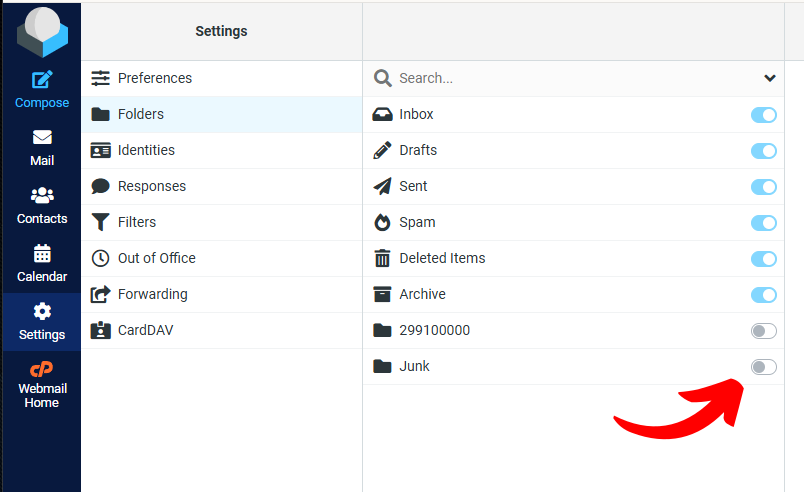
- Roundcube will then display all available folders in your mailbox.
- Turn on the toggle beside each folder you want to display.
- Once the folder is turned on, it will appear in the folder list so you can access the mail inside it.
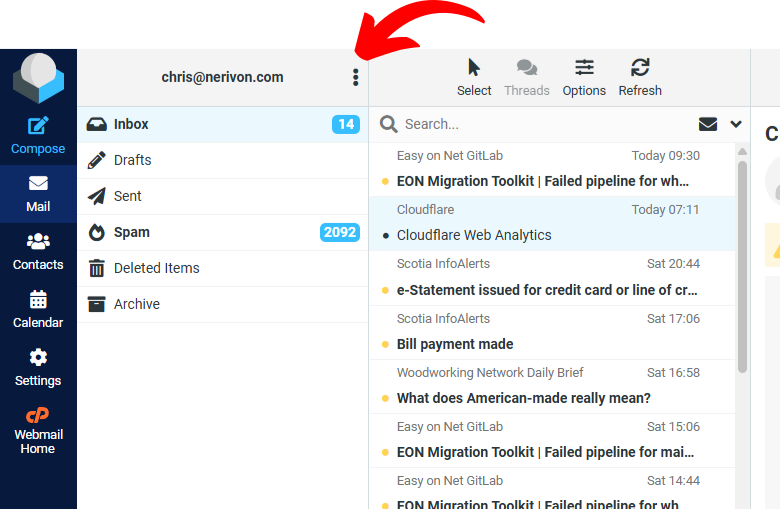
Click the three vertical dots beside your email address, then choose Manage folders.
Turn on the toggle for any folder you want Roundcube to display.
Commonly Hidden Folders
- Sent
- Drafts
- Junk
- Deleted Items
- Archive
- Old custom folders created in another email program
- Folders underneath another folder, such as mail
One very common example after migration is a folder called mail with additional folders underneath it, such as sent-items. This is often where a user’s older Sent Mail history can be found.
Look For The Mail Folder
If you are trying to find older sent messages, be sure to check whether a folder called mail appears after you enable additional folders.
This folder may contain subfolders such as:
- sent-items
- drafts
- trash
- other older mailbox folders from a previous system
If you see a small arrow or expand icon beside a folder, click it to reveal the subfolders underneath.
The folder options are opened from the three-dot menu beside your email address at the top of the folder list.
Additional Help Topics
Click the topics below if you still do not see your missing email.
Different email systems and mail programs store folders in different ways.
After a migration, all of your email folders are usually transferred successfully, but Roundcube may not automatically display every folder until you turn them on.
- You previously used Outlook, Apple Mail, Thunderbird, or another email program.
- You had older folders or archived mail.
- Your mailbox contains nested folders under another folder such as mail.
- Your previous system used different names for Sent, Trash, Drafts, or Junk folders.
If your Sent Mail history does not appear in the regular Sent folder, look for a folder named mail and expand it.
A subfolder such as sent-items is often where older sent messages are located after migration.
- Turn on all visible folders first.
- Look for a folder named mail.
- Expand that folder to reveal subfolders.
- Check sent-items for older sent email.
If you have enabled all folders and still cannot find your email:
- Check Junk.
- Check Deleted Items.
- Check Archive.
- Expand the mail folder and any other folders that contain subfolders.
- Use the search box at the top of Roundcube.
If you still cannot locate the email, please contact support and include:
- The affected email address
- The approximate date of the missing message
- The sender or recipient
- The subject line, if known